








Can a Projector be Ceiling-mounted?
By XGIMI Tech - 2026-03
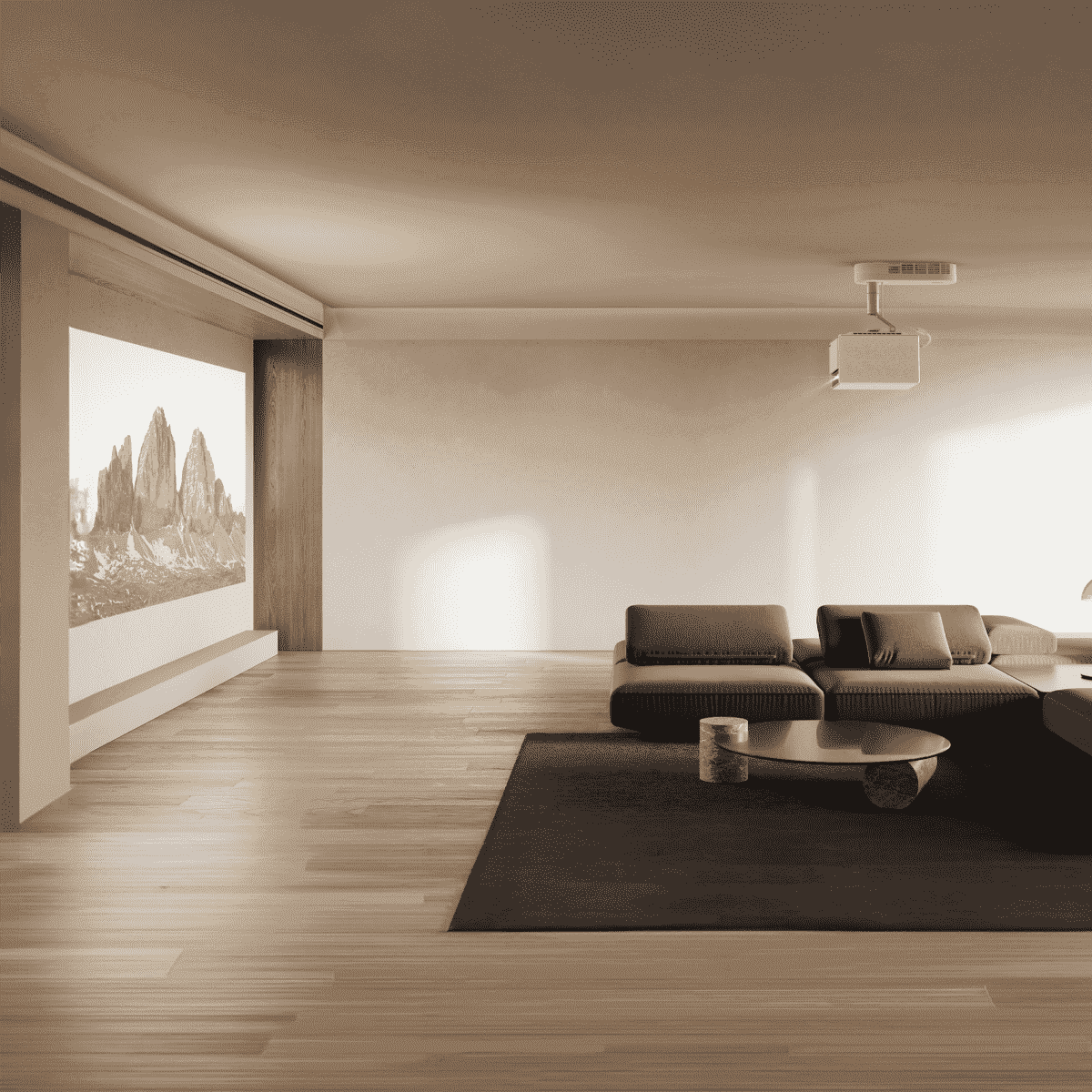
If you want a cinematic audio-visual experience, ceiling-mounting is one of the ideal way for place your projector. Ceiling projectors save significant space, eliminate the potential problems of being dazzled by the projected light in front of the screen or tripping over wires. Is every projector suitable for being ceiling mounted? Not really. This guide takes XGIMI home projectors as example and lead you to

How Can You Tell Whether a Projector Supports Ceiling Installation?
This can mainly be evaluated from three aspects:
Further Reading: How to Mount a Projector to Ceiling
1. Projector Mounting Interfaces
Start by examining the projector’s mounting interface on the bottom. Ceiling-mountable models usually include threaded mounting holes designed for universal projector brackets. Check the number, spacing, and thread type of these holes to confirm compatibility with a mount. This information is typically listed in the product specifications or user manual.
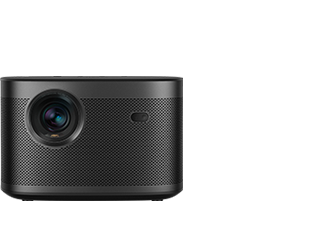
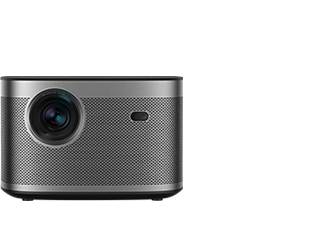
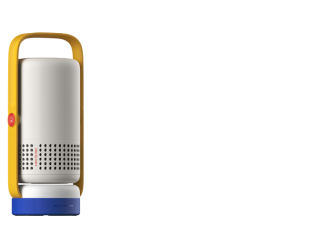
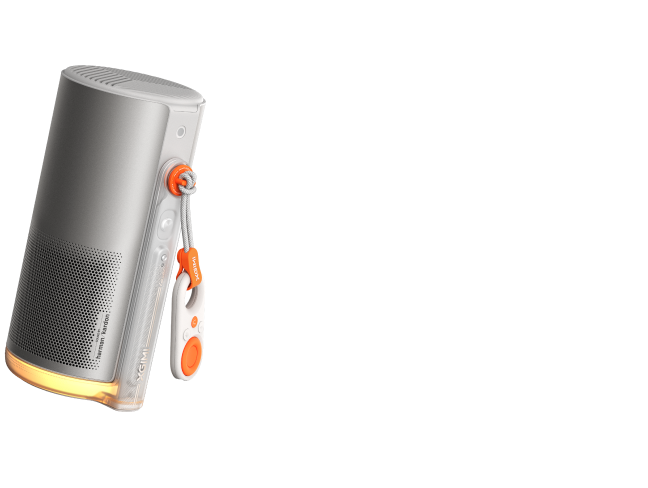
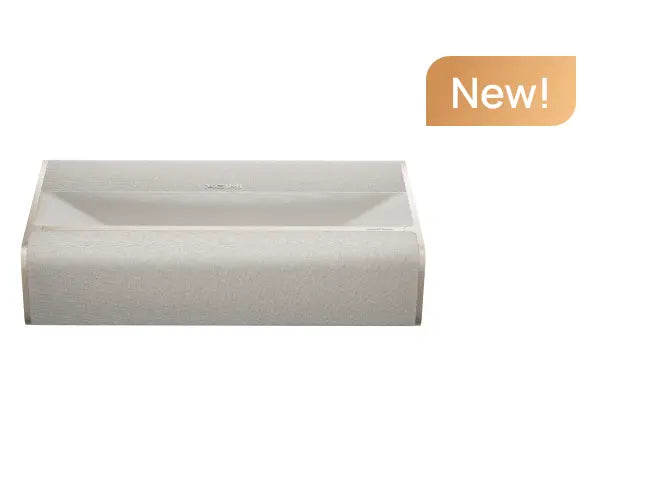
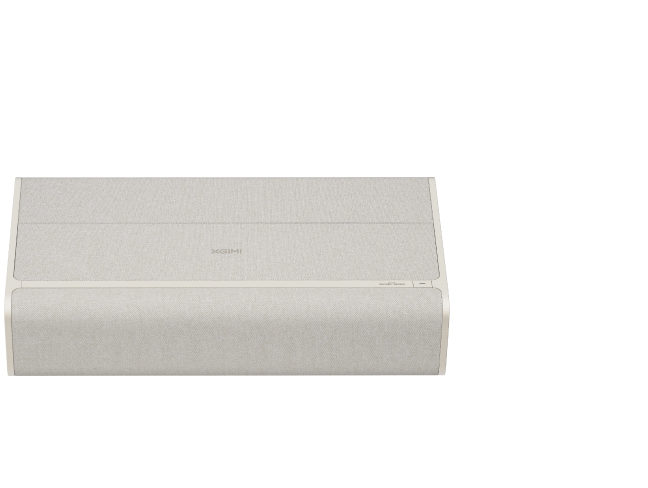
List of Ceiling Projectors Currently Available on XGIMI Online Store
Most XGIMI standard throw and long-throw projectors come with a standard 1/4-inch screw thread on the bottom, which means they can be attached to a ceiling mount that supports this interface.
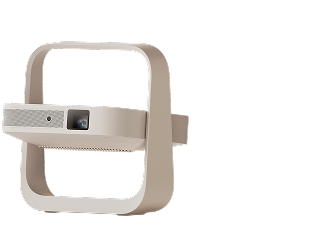
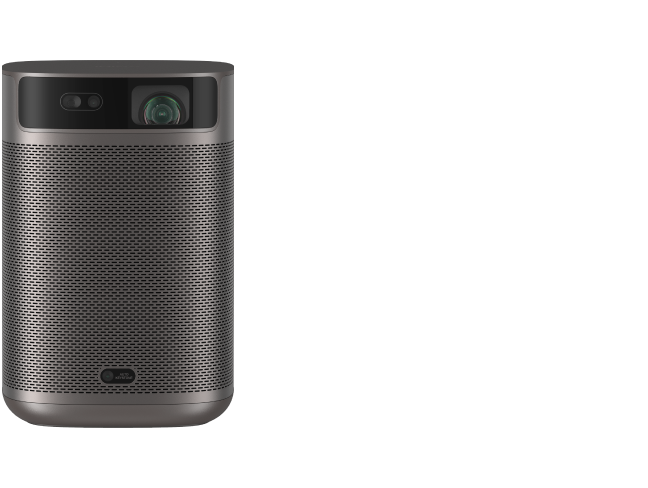
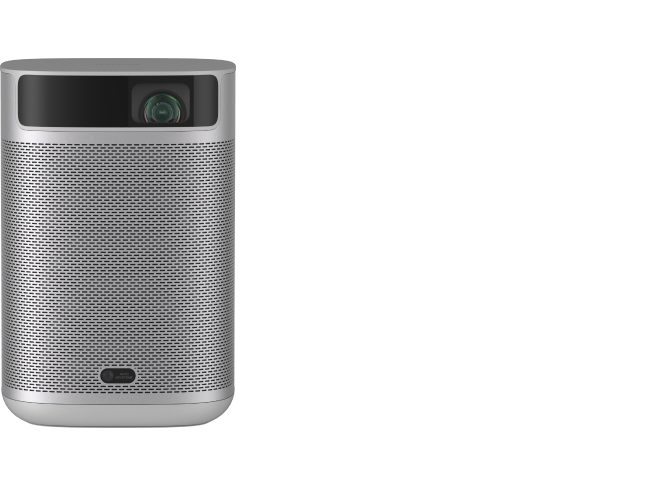
1/4-inch (6 mm): Vibe One (Battery Powered), MoGo 2 Pro (New), MoGo 3 Pro, MoGo 4, MoGo 4 Laser, Halo+ (New), Elfin Flip, Elfin Flip Plus, HORIZON, HORIZON Pro, HORIZON Ultra, HORIZON S Pro, HORIZON S Max, HORIZON 20, HORIZON 20 Pro, HORIZON 20 Max
2. Projection Modes
Make sure the smart video projector supports a ceiling-mounted projection mode. When a projector is installed upside down on the ceiling, this mode automatically flips or adjusts the image so it displays correctly. Most models include this option in the system settings, often labeled “Ceiling” or “Front Ceiling.”
Except for the UST models like AURA 2, the XGIMI mid- and long-throw home video projectors all support ceiling-mounted projection modes. Please note that the MoGo 3 Pro needs to be updated to firmware version V1.0.11 or later (update path: All Settings → System → About → System Update → Check for Update).
How to Set the Ceiling Projection Mode for Different XGIMI Projectors?
For step-by-step instructions, please refer to the tutorials below.
For Google TV
2.1 Google TV
Applicable models for this system: Vibe One (Battery Powered), MoGo 2 Plus, MoGo 2 Pro (New), MoGo 3 Pro, MoGo 4, MoGo 4 Laser, Halo+ (New), Elfin Flip Plus, HORIZON 20, HORIZON 20 Pro, HORIZON 20 Max
Step 1: Go to “Settings” → “Projector” → “Projection Type”.

Step 2: On the “Projection Type” page, select the desired projection type.
For Android TV (New UI)
2.2 Android TV (New UI)
Applicable models for this system: HORIZON Ultra、HORIZON S Pro、HORIZON S Max
Step 1: Go to “Settings” → “Projector Settings” → “More Image Correction Settings”→ “Projector Placement”.


Step 2: On the “Projector Placement” page, select the desired projection type.

For Android TV (Old UI)
2.3 Android TV (Old UI)
Applicable models for this system: HORIZON、HORIZON Pro
Step 1: Go to “Settings” → “Projector Settings” → “Others”→ “Projector Placement”.


Step 2: On the “Projector Placement” page, select the desired projection type.

For XGIMI OS
2.4 XGIMI OS
Applicable models for this tutorial: Elfin Flip
Steps: In “Settings” → “Image Correction” → “Projection Type”, you can choose the desired projection type.


For No OS
2.5 No OS
Applicable models for this tutorial: TITAN
Step 1: Press the “Settings" button on the remote control to open the system settings.

Step 2: Select “Image Correction” → “Projector Type.” On the “Projection Type” page, select the desired projection type.


3. Projector weight
Consider the projector’s weight before installation. Heavier models require stronger brackets and secure mounting to the ceiling structure. The ceiling material and installation method also affect stability. If the projector is relatively heavy, it is best to check the manufacturer’s support resources for recommended mounting hardware and installation guidance.
The weight of each projector can be found in the specifications on the product page.
| Product | HORIZON 20 Max | HORIZON 20 Pro | HORIZON 20 | TITAN | HORIZON S Max | HORIZON S Pro | HORIZON Ultra | HORIZON Pro | HORIZON |
|---|---|---|---|---|---|---|---|---|---|
| Product Weight | 5.4 kg / 11.9 lbs | 4.9 kg / 10.8 lbs | 4.8 kg / 10.6 lbs | 11.5Kg | 4.81 kg | 4.75 kg | 5.2 kg | 2.9 kg | 2.9 kg |
Note: For accurate and up-to-date product details, please refer to the product page.
For heavier models, a higher load-bearing capacity is required for the ceiling mount. For installation, it is recommended to mount the projector on a solid concrete ceiling for better stability. The actual weight may vary based on configuration, manufacturing process, and testing method.
Recommended XGIMI Projector Ceiling Mount
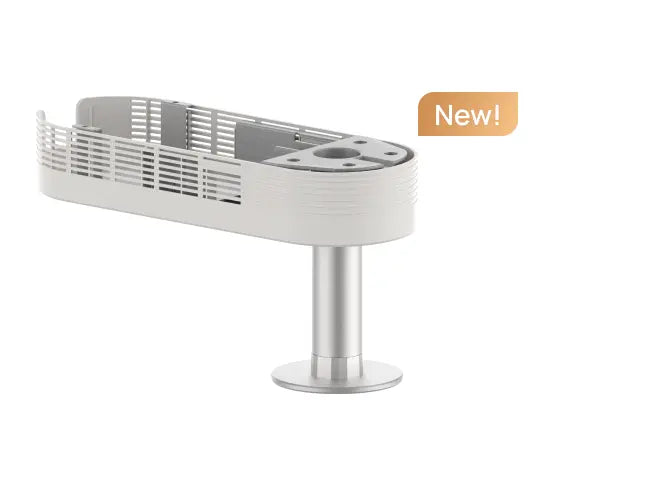
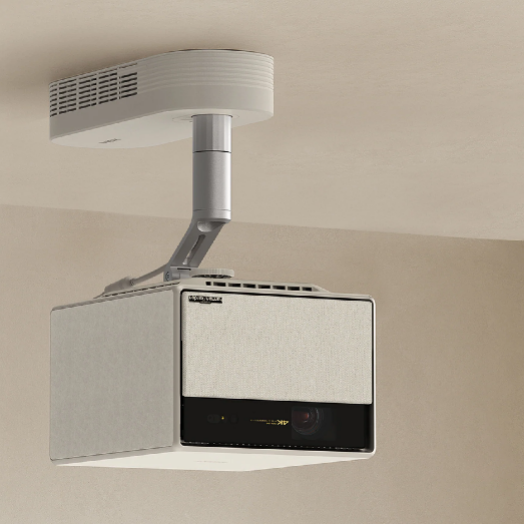
Are you considering mounting your XGIMI projector on the ceiling in your home theater, living room, or bedroom? We offer customized ceiling mount designed for specific XGIMI projector models.
XGIMI Ceiling Mount – Compatible with the HORIZON series

Enjoy $50 off Your Next Purchase
Be the first to know about any news and sales!
*By subscribing, you agree to receive XGIMI's marketing emails and XGIMI's Privacy Policy.